Captions: place and time from your photo
How ColorWander writes the place and time on your card, what happens without GPS, and how to edit the caption.
Where the caption comes from
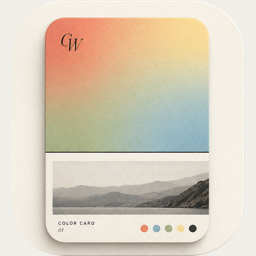
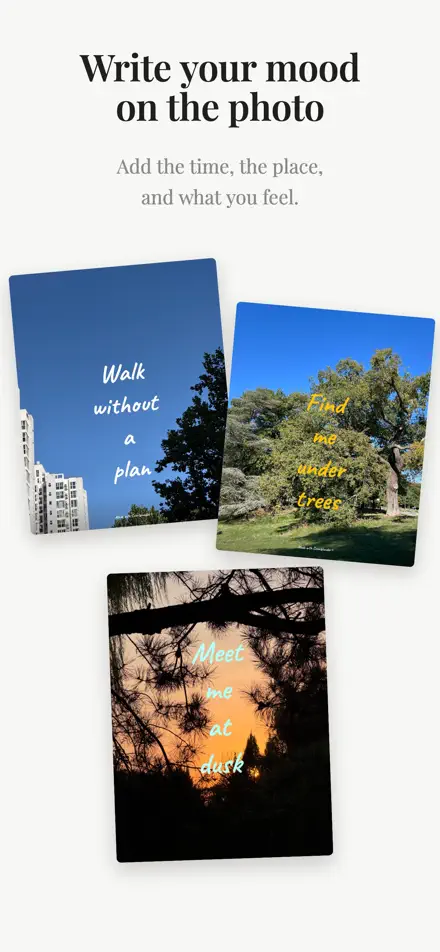
ColorWander reads the time the photo was taken and, if the photo has GPS, the place. The time is printed like 5:47 pm · Jun 16, with the year added for older photos. The place is joined with dots, like Colosseum · Rome.
How the place name is found
- Apple’s geocoder and an OpenStreetMap-based service run side by side; the first good answer wins.
- If both fail, a built-in offline list of cities finds the nearest town.
- If there is no location at all, ColorWander describes the scene instead — like “Sunset” — using on-device image recognition.
The place name’s language follows the country where you took the photo: Simplified Chinese in mainland China, Traditional Chinese in Hong Kong, Macau and Taiwan, Japanese in Japan, and English elsewhere. In Literary mode it matches the language of the quote.
Photos without GPS
Photos saved from chat apps, AirDrop or screenshots usually arrive without location. ColorWander first checks the location stored in your Photos library, then falls back to the scene description. You can always type the place yourself.
Edit the caption
- Double-tap the caption on the card, or open Text → Caption.
- The location can run up to four lines. Tap the emoji button for suggestions.
- Turn the caption off with Show Caption.
- Text color: automatic contrast, white, black, any color from the palette, or a custom color.