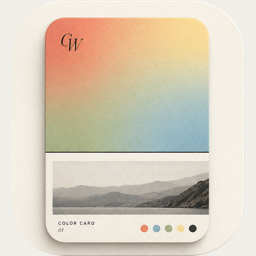
Quick start: your first color card in a minute
Open ColorWander, choose a photo, pick a layout and export — the whole flow, screen by screen.
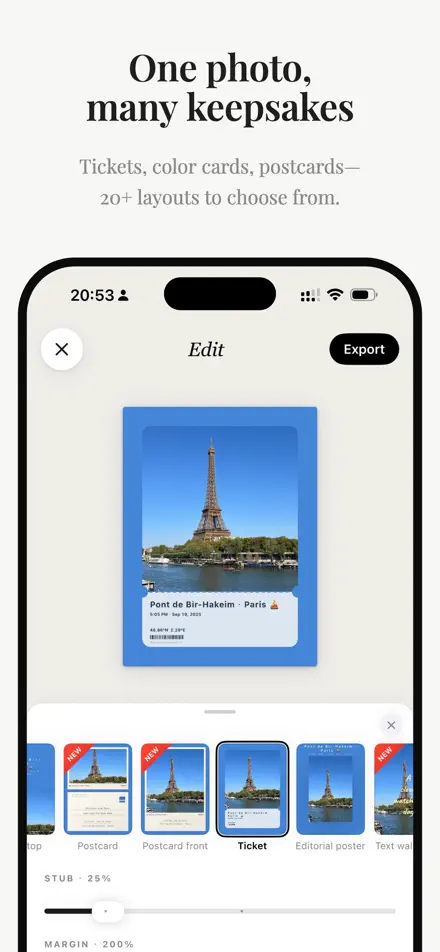
1. Choose a photo
Open the app and tap Choose a photo. ColorWander uses the system photo picker, so you can pick any picture or Live Photo from your library. No account, no sign-up. On iPad you can also drag a photo onto the screen.
Photos you took on this iPhone keep their location and time, which become the caption. See Captions for photos without GPS.
2. The editor
The editor shows your card on top and four tabs below:
- Layout — the 28 layouts, the ratio, and each layout’s own options.
- Color — the six colors from your photo, solid, gradient or blurred fills, and film grain.
- Text — the caption, text color and Literary mode.
- Font — 39 typefaces, size and letter spacing.
Tap the color block, the palette or the mark on the card to jump straight to its controls. Pinch the photo to zoom up to 3× and drag to move it. The bottom panel has three heights; drag it down for more room.
3. Pick a layout
Swipe through the layouts on your own photo. Chips at the top filter by Recent, New, Limited and by type: posters, souvenirs, frames, calendars, palettes and color blocks. Pro layouts can be previewed freely; you only need Pro to export them. See all layouts.
4. Export
Tap Export. Choose a quality — 2K, 4K or Lossless — then Save, Share, or Save as Live Photo if you started from a Live Photo. Every saved card goes into the Gallery, where you can edit it again later.